
Contracts in the GUI wallet
Open F7 Contracts. Settings are on F8. The three top-level tabs divide the workflow into Create, My contracts and Open file. Screenshots below show the English GUI on an isolated v2 network; heights, names and balances are examples, not mainnet measurements.
Create
Choose one of the six templates or the custom program editor. Use its info button for an explanation while keeping the form available for the actual parameters. Enter the parties, amounts and block heights required by that policy. Review the selected wallet address and the rights each party receives.
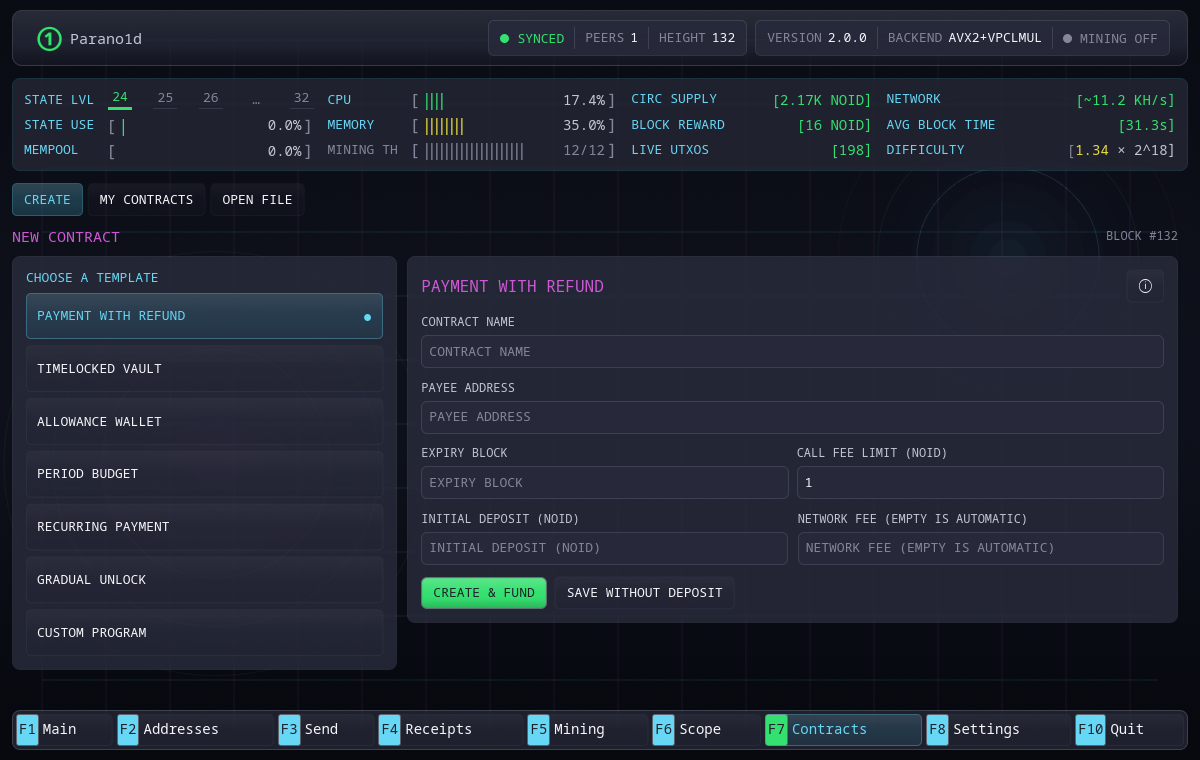
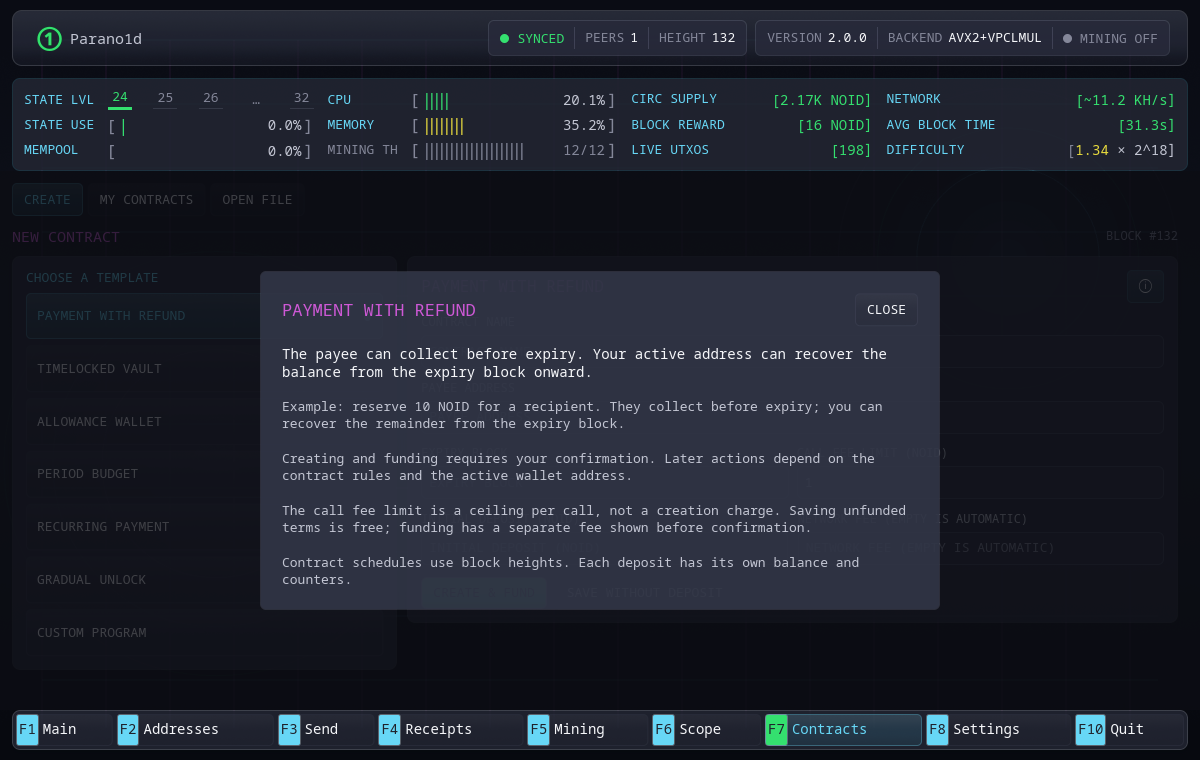
Saving creates public terms and a local library entry. It does not deploy a global account or charge a creation fee. Call fee limit is the maximum network fee permitted by the contract on a later call. It is separate from the fee for adding funds. The help popup explains this distinction.
My contracts
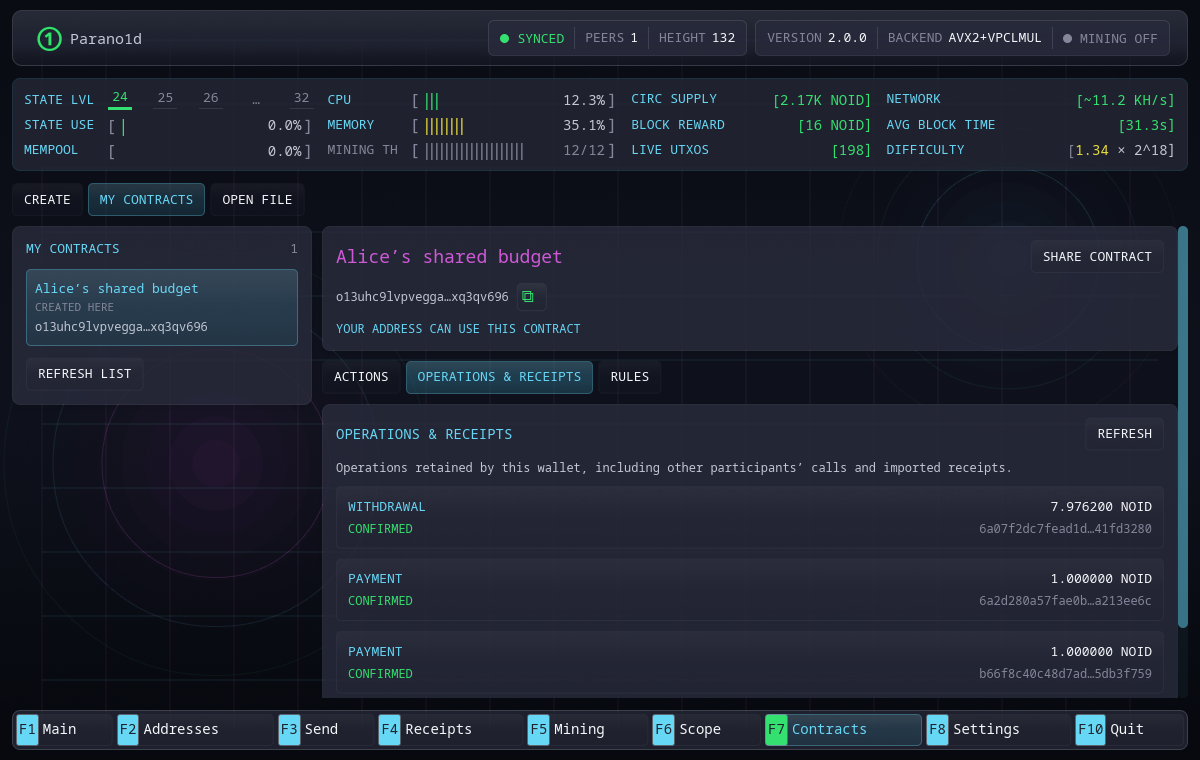
Select a contract in the left-hand list. Its name and address stay above the inner tabs: Actions, Operations & receipts and Rules. Switching between those tabs preserves the selected contract and form. Rules shows the program, policy and counters; it is not another creation form.
Actions checks available balances against current verified State. Choose the funded instance to use. Add funds submits an ordinary wallet payment. Depending on the policy and current authority, the call form can make a payment, continue without payment or collect by closing. Forms do not override the contract: a forbidden branch, recipient, amount or height is rejected.
Review the exact fee, recipient, retained balance, branch and successor before submitting. Submission is pending until inclusion; it is not confirmation. If the tip or input changes, refresh the review rather than approving stale terms. A zero balance after another party spends is a current-state result, not evidence that importing the contract failed.
Operations and receipts
The journal combines wallet operations with retained verified calls from either party, including received receipts. It shows the actor and payout recipient separately. It is a local journal, not a global history explorer. The GUI displays up to 256 recent operations; this display limit does not delete retained proofs.
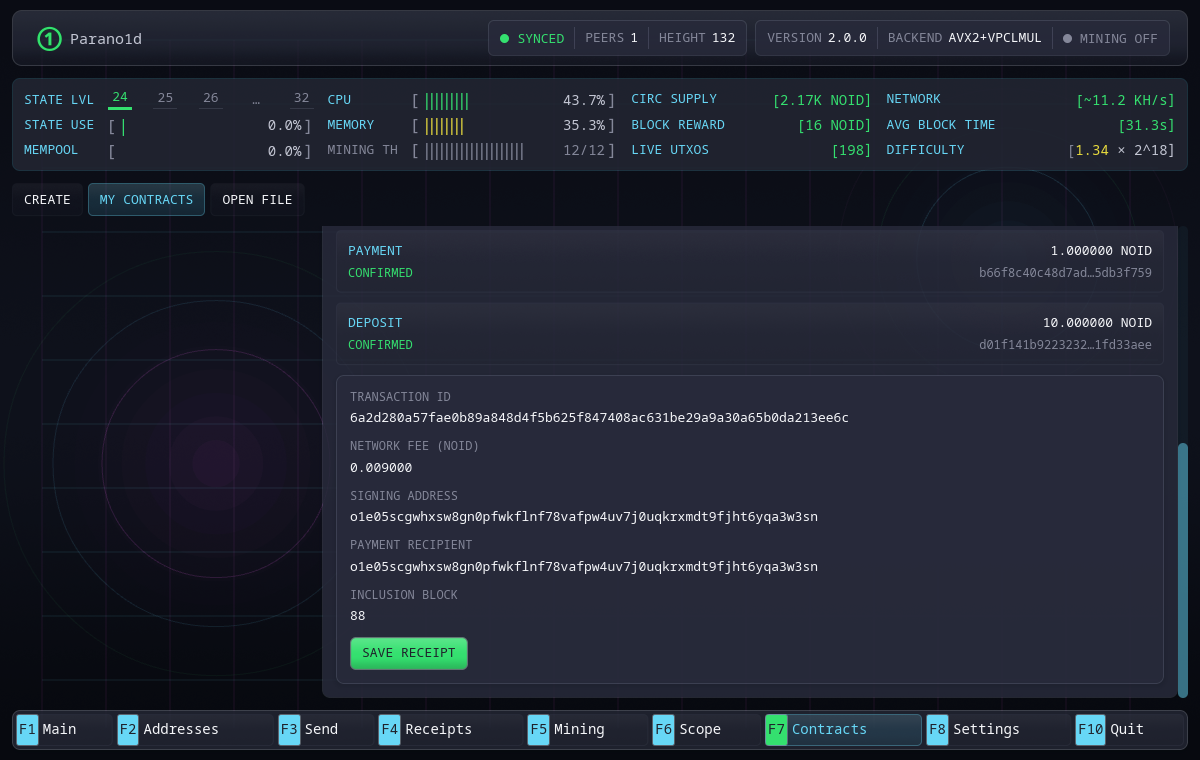
Select a confirmed call to inspect its amount, fee and transaction identifier, then use Save receipt to export evidence. Deposits are ordinary payments and use ordinary payment receipts. A contract call uses a contract receipt.
Share, open and merge
Share contract exports the selected public terms and, when available, one matching receipt. It does not contain your secret and does not grant authority that the policy has not already assigned. Send the file to the other party.
In Open file, use Browse or enter the path to a shared contract file or contract receipt. Inspect the parsed terms and verification result. Opening a preview does not yet add it to the library. For an existing contract, Update my contract & open merges the received evidence; for a new one, add it to the library. Your own name and saved operations remain.
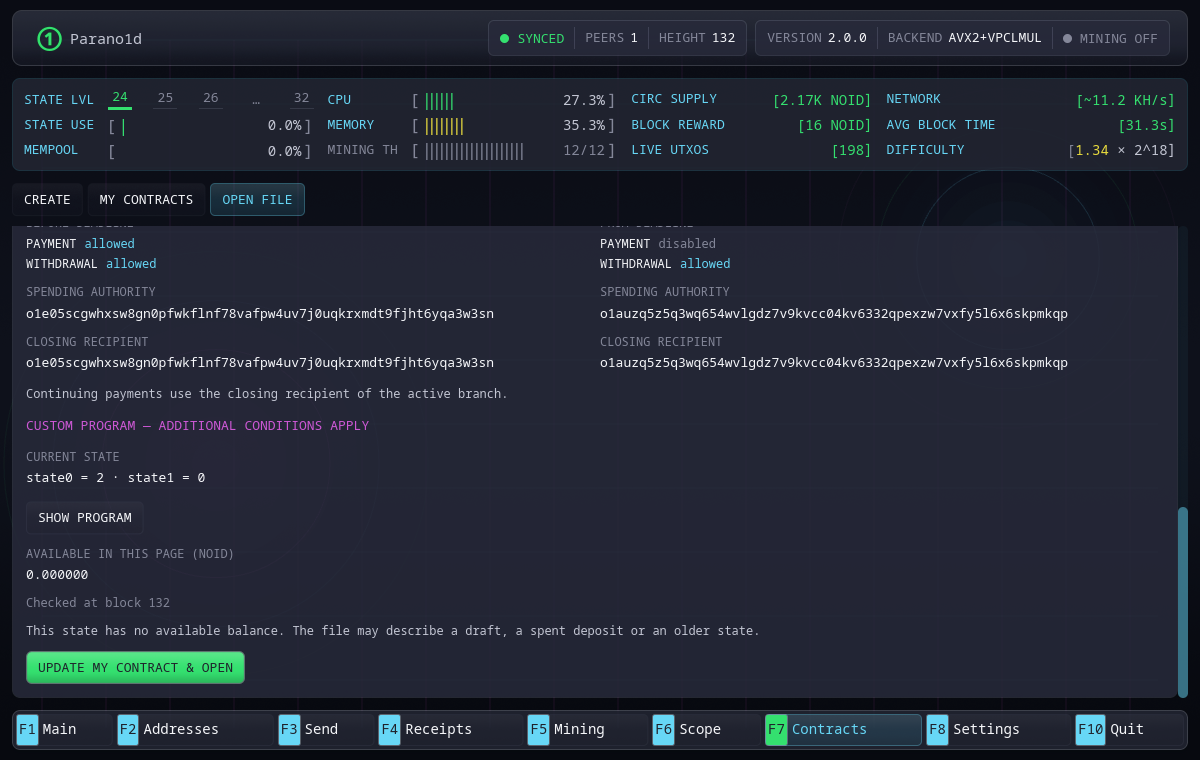
An older file cannot roll a live contract back. The wallet checks current State and keeps known related states. A closing receipt still identifies the original contract even though it has no successor. See receipts and recovery for offline gaps and pruning. F4 Receipts remains the ordinary payment receipt interface; contract files and call receipts belong in F7 Open file.
File selection and save dialogs use native platform integration on Linux, Windows and macOS. The workflow is the same; screenshots show Linux. Keep a backup of public terms and receipts as well as the wallet secret.